
Configuration
Log in to WHMCS
You may log in to the WHMCS admin area as an admin user to configure this module.
This Eenos Reseller WHMCS module currently supports only reseller and alpha reseller operations on the Eenos hosting control panel. If you are looking for the Eenos ROOT WHMCS module, please check this module.
Supported Features
| Create | Suspend | Unsuspend | Terminate |
| Yes | Yes | Yes | Yes |
| Change Package | Change Password | Usage Updates | Client Area Link |
| Yes | Yes | Yes | Yes |
The following ports should be open for outbound connections from your WHMCS server: 4443 & 4444
In addition to the basic features, this module supports Sync Data, Server Sync, and Account usage Sync services.
Adding an Eenos Reseller Server
This WHMCS module needs an Eenos server added inside your WHMCS.
To set up an Eenos Server in WHMCS :
- Go to Configuration > System Settings > Servers.
- Click Add New Server.
- Select EenosReseller from the menu.
- Click Go to Advanced Mode
- Enter Hostname
- Enter IP Address
- Enter Username with API User Name ( You can create from Eenos Reseller -> Advanced Tools ->API -> API Manager )
- Enter the password of the API user
- Enter your reseller username in Access Hash
- Click Test Connection
- Enter the desired additional server details.
- Examine the displayed default port. If your server uses a different port, check Override with Custom Port and enter the correct port.
- Click Save Changes.
See a screenshot below,
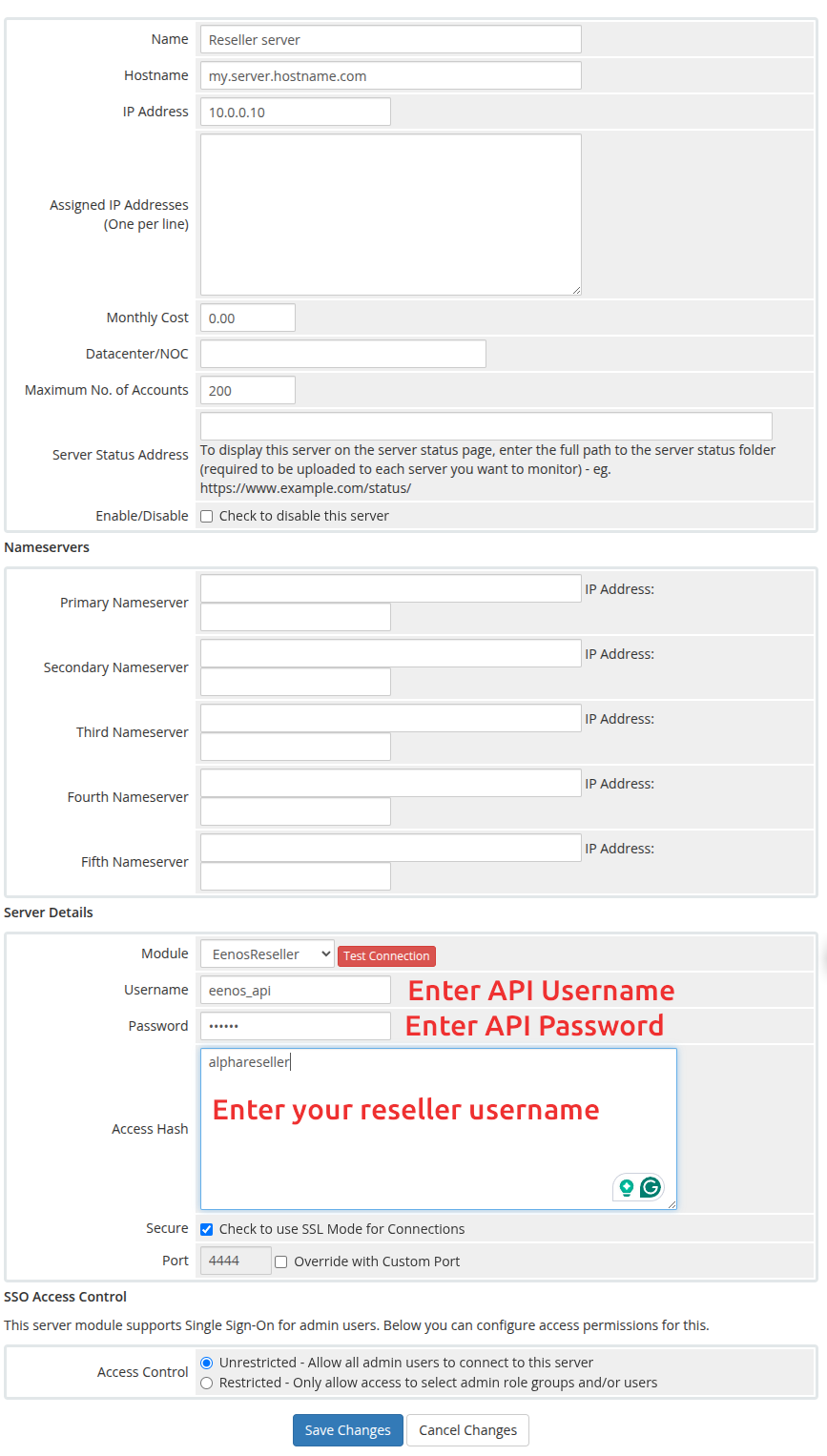
It is important to click on the "Refresh Icon" on the server list so that the server packages will be fetched.
Creating a Server Group
The Eenos reseller WHMCS module needs a server group so that the module can automatically fetch the Eenos Packages from the server.
To set up an Eenos Server Group in WHMCS :
- Go to Configuration > System Settings > Servers
- Click Create New Group
- Enter Name ( Eg: Eenos Reseller Servers )
- Click on the Server names from Selected Servers,
- Click Add
- Click Save Changes
Now we have created a server group with the added Eenos Servers.
Creating Eenos Hosting Product
You can create a product that provisions accounts on your Eenos server at Configuration > System Settings > Products/Services
You can then create a product using an existing Eenos package or by defining custom options. You can also choose to create a reseller hosting product.
If you choose Custom options along with a package name, then the package values will be overridden by the custom values
Use an Existing Eenos Package
To create a hosting product that uses an existing Eenos package, use the following product configuration:
- For Product Type, select Shared Hosting.
- Enter Product Name
- For Module Select EenosReseller
- Click Continue
- Click Module Settings
- Make sure the Module Name is EenosReseller
- Select the Eenos Reseller Server Group
- Click Save Changes
- Again Click Details
- Click Module Settings
- Select EenosReseller Package Name
- Click Save Changes
Defining Custom Options
To create a hosting product with a custom package, use the following product configuration:
- For Product Type, select Shared Hosting.
- Enter Product Name
- For Module Select EenosReseller
- Click Continue
- Click Module Settings
- Make sure the Module Name is EenosReseller
- Select the Eenos Reseller Server Group
- Click Save Changes
- Again Click Details
- Click Module Settings
- Select Eenos Package Name
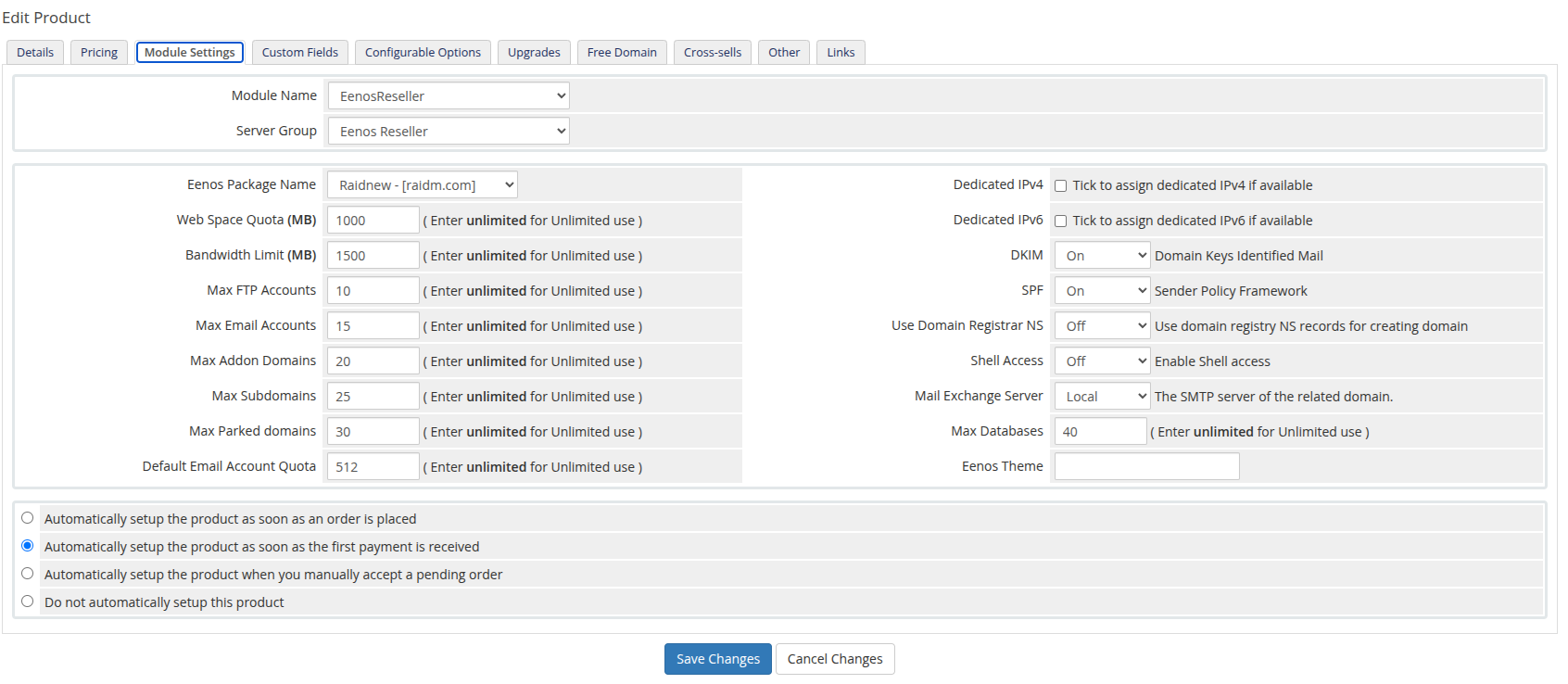
- Enter the desired values of the package options
- Click Save Changes.
To assign unlimited values to a feature, please use the keyword "unlimited". We don't consider zero as unlimited.
Creating Eenos Sub-Reseller Package
To create a hosting product for a sub-reseller account, use the following product configuration:
- For Product Type, select Reseller Hosting.
- Enter Product Name
- For Module Select EenosReseller
- Click Continue
- Click Module Settings
- Make sure the Module Name is EenosReseller
- Select the Eenos Reseller Server Group
- Click Save Changes
- Again Click Details
- Click Module Settings
- Select Eenos Package Name
- Enter the desired values of the package options
- Enter the Reseller Options
- Click Save Changes.
You may need to make sure the following reseller options are configured:
Limit Reseller by Number: How many accounts a reseller can create. Default unlimited.
Reseller Disk Quota: The maximum allowed disk usage on all sub-accounts. Default unlimited.
Reseller Bandwidth: The maximum allowed bandwidth usage on all sub-accounts. Default unlimited.
If you allow "unlimited" in reseller features, it will allow the reseller to do overselling of the resources.
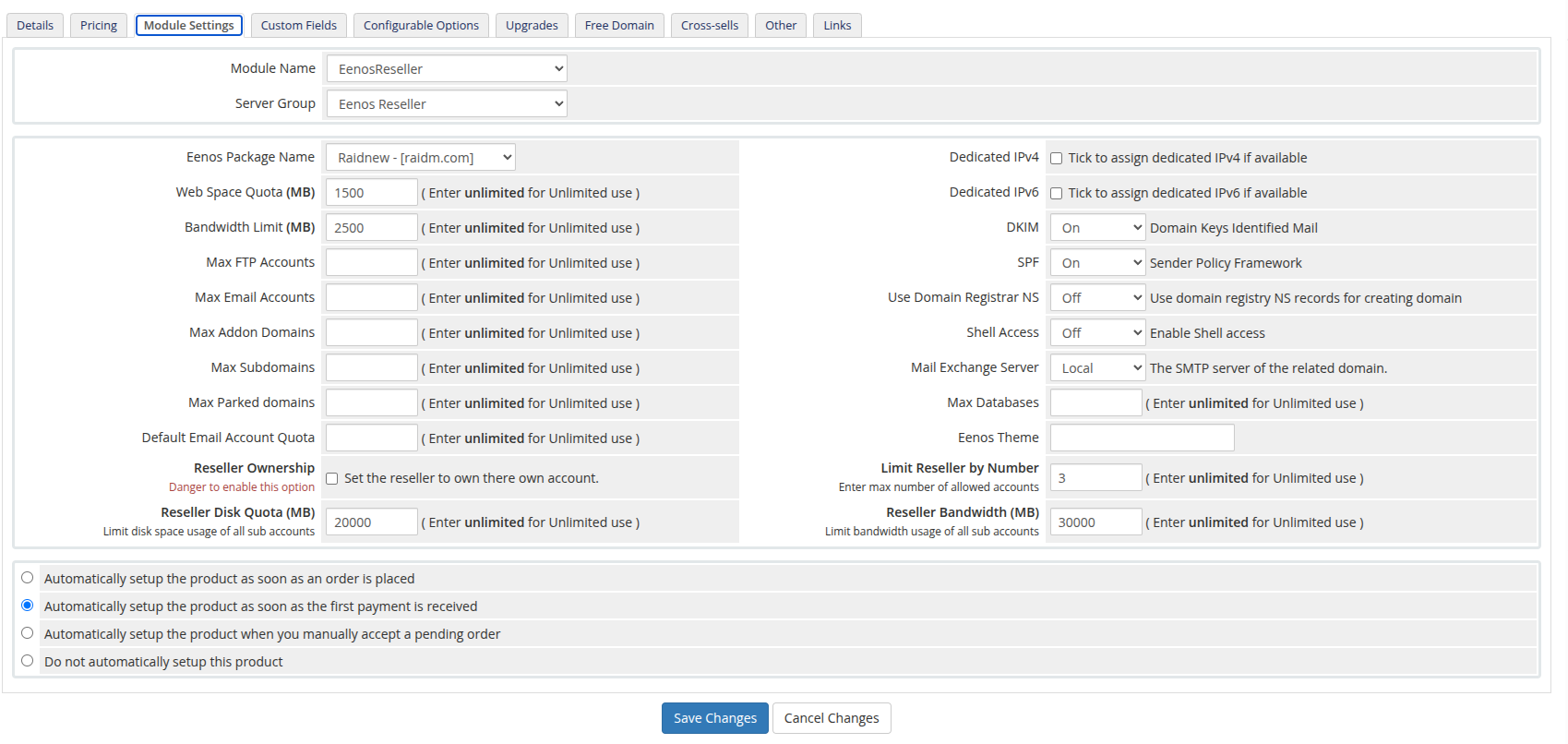
If your Eenos server is enabled with Reseller Chain, it will allow multi-level reseller accounts. That means a reseller can create other resellers.
To Enable Multi-level Chained reselling Login to:
Eenos WAP -> Automation -> Tweak Settings -> Advanced Tweaks -> Multi-Level Reselling